
Interactive Brokers (IBKR)
Trandence supports two ways to import your trades from Interactive Brokers (IBKR): Automated Sync via Flex Web Service (recommended) or Manual CSV/TXT File Import.
Option 1: Automated Sync (Flex Web Service)
Automated Flex Web Service sync allows Trandence to fetch your stock and ETF executions in the background without needing to export and upload CSV files each session, and without recurring 2FA prompts.
1. Open Flex Queries in IBKR
- Log in to your IBKR Client Portal (such as interactivebrokers.com, interactivebrokers.ie, or interactivebrokers.co.uk).
- From the top navigation menu, go to Performance & Reports → Flex Queries.
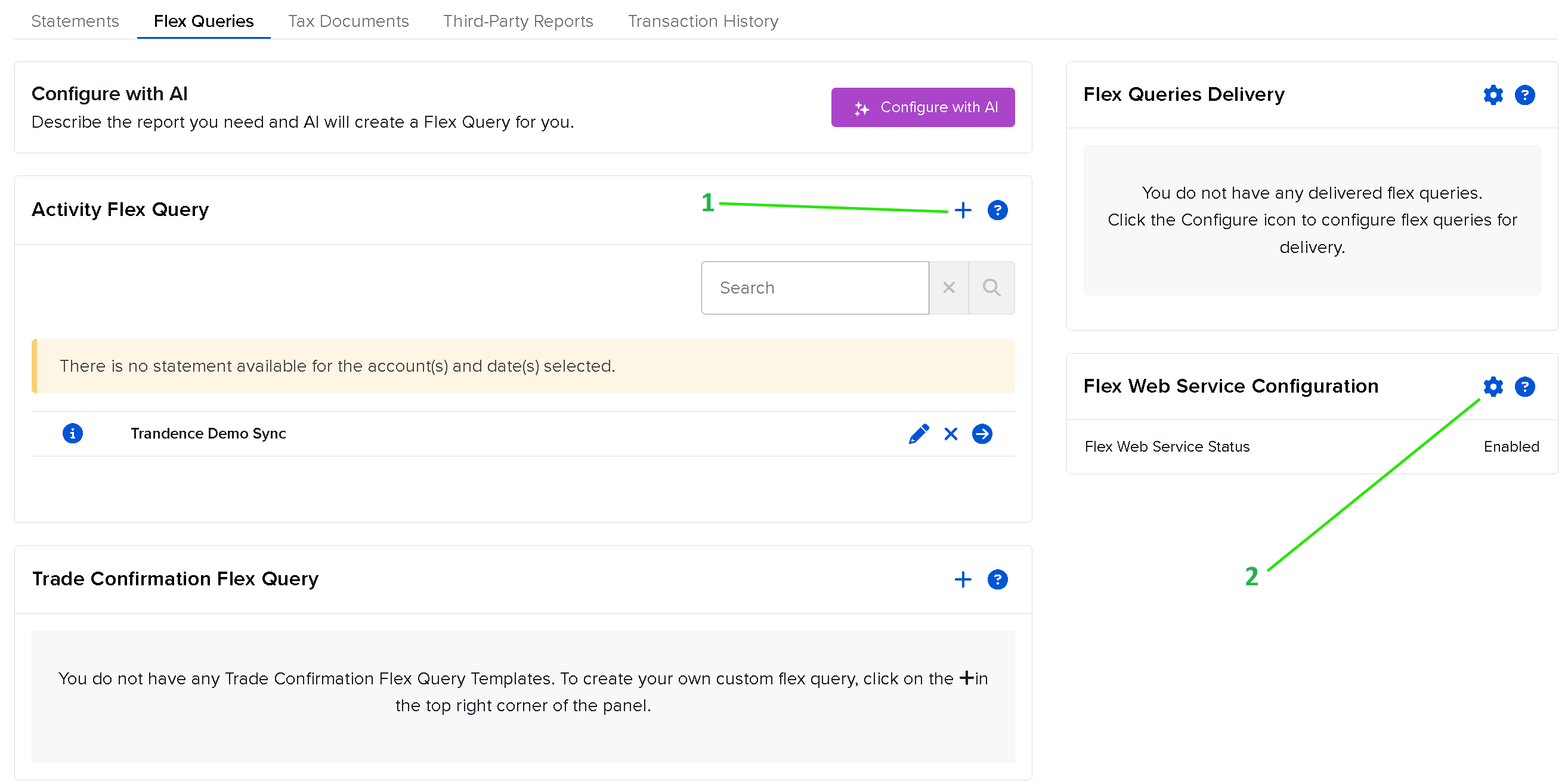
2. Create an Activity Flex Query
- In the Activity Flex Query section, click the
+button (item 1 in the screenshot above). - Name your query (e.g.,
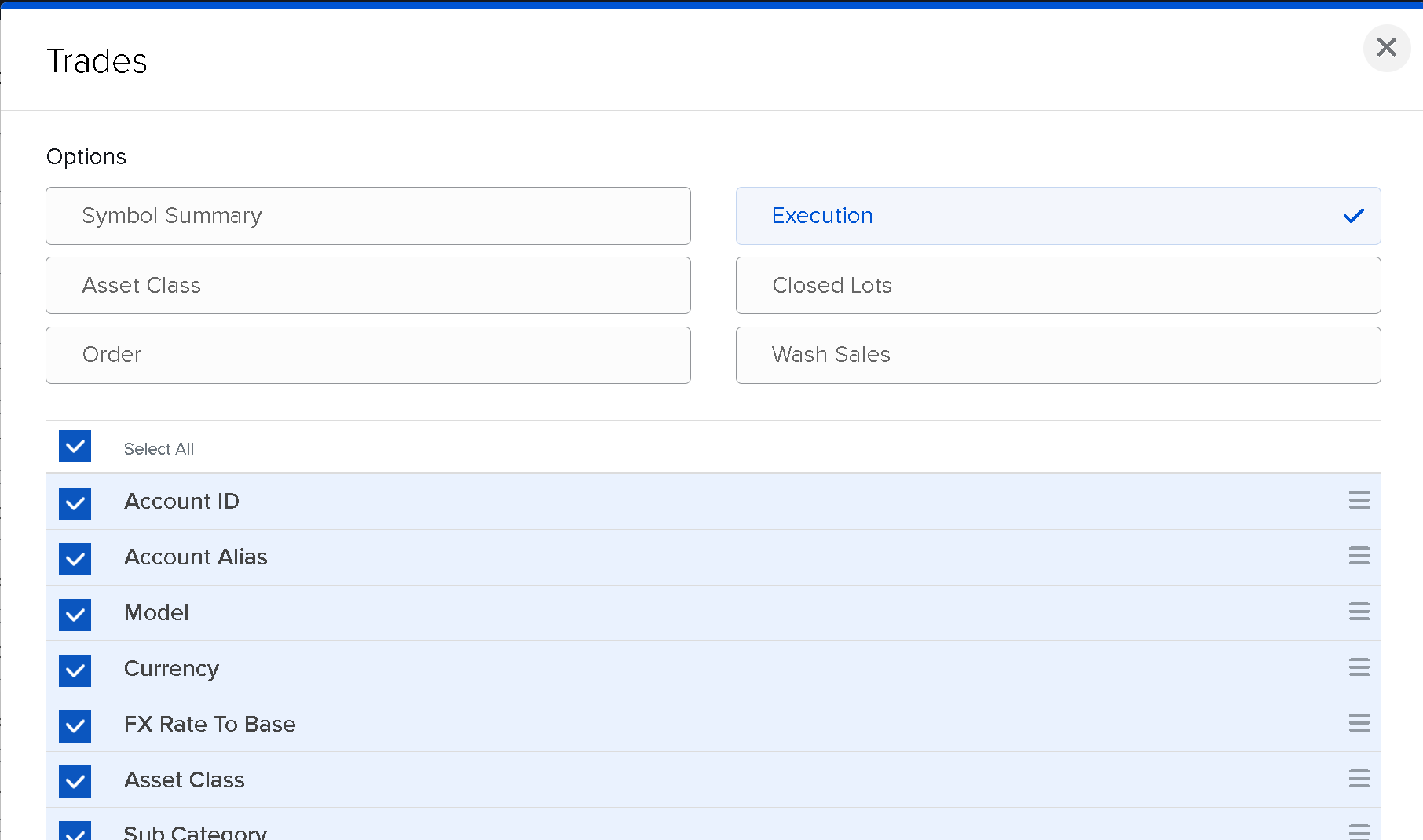
Trandence Sync). - Under Sections, click on Trades and select Execution.
- Check the Select All checkbox to include all trade execution fields (Symbol, Date/Time, Quantity, Price, Commission, Currency, etc.).
- In Delivery Configuration:
- Set Format to
XML. - Set Period to
Last 30 Calendar Days(orLast 365 Calendar Days).
- Set Format to
- Click Save Changes / Continue at the bottom of the page.
- Back on the Flex Queries overview page, click the
ⓘ(info icon) or edit icon next to your query name to view and copy your Flex Query ID (e.g.,1604659).
3. Copy your Flex Token
- In the Flex Web Service Configuration box on the right side of the Flex Queries page, click the
⚙️(settings icon, item 2 in the screenshot). - Ensure the status is set to Enabled and copy your Flex Token (Current Token).
4. Connect in Trandence
- In Trandence, open Broker Sync from the sidebar.
- Click Configure IBKR on the Interactive Brokers card.
- Paste your Flex Token and Flex Query ID (Account ID is optional, e.g.,
DUR886847for Paper Trading orU1234567for Live). - Click Test & Save Connection.
- Once connected, your executions will sync automatically and can be refreshed on demand with Sync Trades.
Troubleshooting & Important Notes
[!NOTE] 5–15 Minutes Activation Delay
When a new Flex Query is created or a token is generated, IBKR’s external API gateways take 5–15 minutes to activate the query. If you seeError (1003): Statement is not available, wait a few minutes and try again.
[!NOTE] End-of-Day Settlement for Today’s Trades
Activity Flex Queries in IBKR are generated following nightly End-of-Day (EOD) batch clearing (typically between 23:00 and 02:00 EST). Today’s intraday executions become available in the automated Flex statement after market settlement.
Option 2: Manual CSV File Export
If you prefer offline file exports, you can generate a custom CSV report from IBKR.
Creating a Flex Query CSV
- In your IBKR Client Portal → Performance & Reports → Flex Queries, create an Activity or Trade Confirmation query.
- Select Trade Confirmations with all available fields.
- Set the format to CSV and save.
Exporting & Uploading to Trandence
- Click Run (
➔) next to your query on the Flex Queries page. - Select your desired date range (e.g., Last 365 Days) and save the
.csvfile. - In Trandence, navigate to Trades → Import Trades → Upload CSV/TXT.
- Choose Interactive Brokers, verify your timezone (America/New_York), and select your file.
- Review the parsed trades and click Import & Review Summary.
What Trandence Reads
Options. Interactive Brokers sync and CSV import both imports stock trades only for now. To bring your option trades into Trandence, convert your export with Trandence CSV, which reads options, expirations and assignments.
Trandence reads fields such as DataDiscriminator, Symbol, Date/Time, Quantity, T. Price, and Comm/Fee for Stocks and ETFs (STK). Multi-currency trades (e.g., EUR/CAD) are automatically normalized to USD using official historical exchange rates.
Sample file: Download a sample IBKR CSV file
Need Help?
If your connection fails or your file cannot be parsed, contact us at help@trandence.com.
Need Help?
Questions about Interactive Brokers (IBKR)? We answer within one business day.